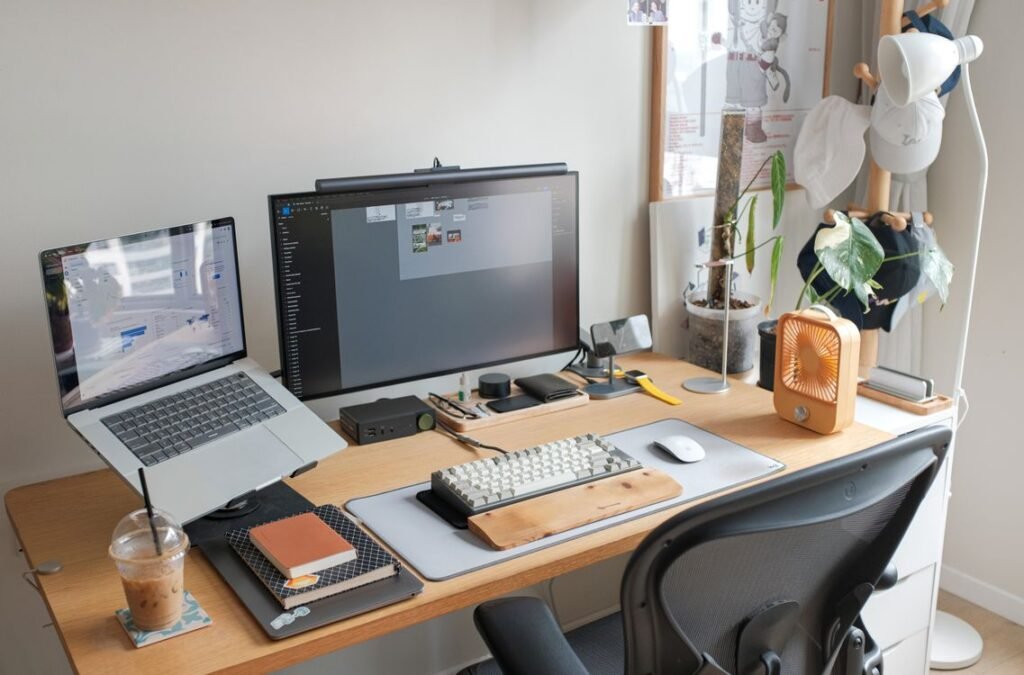
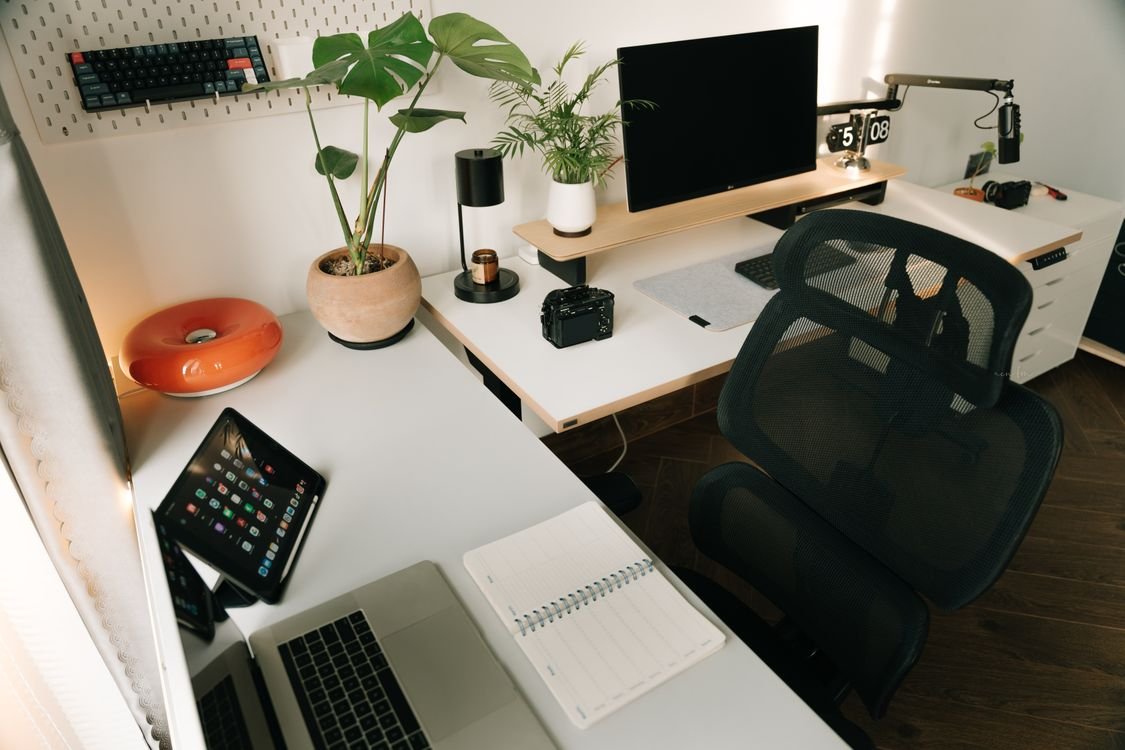
Most monitor advice fits in one sentence: top of the screen at eye level, an arm’s length away. The sentence is right, and it is almost useless on its own, because eye level is different for everyone, and an arm’s length changes with the size of the screen. A monitor set to someone else’s numbers is still set wrong. The fix takes five minutes and a tape measure, and this guide works through it in that order: height first, then distance, then tilt, then the two cases the one-sentence version never covers, which are laptops and second monitors.
How High Should Your Monitor Be?
The rule, from OSHA’s computer workstation guidance, is that the top of the screen sits at or slightly below eye level, so your gaze falls gently downward and the centre of the screen lands about 15 to 20 degrees below your horizontal line of sight. Slightly too low is better than slightly too high. A screen that forces you to tip your chin up loads the neck within the hour; a screen a touch low just asks your eyes to look down, which is their resting direction.
Do not guess your eye level. Sit in your normal working position, back against the chair, feet flat, shoulders relaxed, and hold a tape measure beside your face. Read the height at your pupil. That number, measured from the floor, is the height where the top of your screen belongs. Write it on a sticky note on the monitor, because you will need it again every time the chair or desk changes.
| Your height | Seated eye height from floor, approx. | Top of screen above a 29-inch desk |
|---|---|---|
| 5 ft 2 in | About 42 to 43 inches | 13 to 14 inches |
| 5 ft 6 in | About 45 inches | About 16 inches |
| 5 ft 10 in | About 47 inches | About 18 inches |
| 6 ft 2 in | About 49 inches | About 20 inches |
Take the 5-foot-6 row as a worked example. Eye level sits about 45 inches from the floor, and a standard 29-inch desk puts the desktop 16 inches below that. So the top of the screen belongs 16 inches above the desk surface. A 27-inch monitor is about 13 inches tall, so its centre lands roughly 9.5 inches above the desk, which is about 6.5 inches below eye level. At a 24-inch viewing distance, that is a downward gaze of about 15 degrees, right inside the recommended band. A factory stand typically lifts the top of a 27-inch screen to 17 or 18 inches above the desk, 1 to 2 inches too high for this person, which is why so many setups feel subtly wrong until the monitor comes down a notch or the chair goes up with a footrest underneath.
The table also shows why a fixed “correct height” in inches from the floor cannot exist. The right height for a 5-foot-2 user is 6 inches lower than for a 6-foot-2 user, and a shared desk needs a monitor arm or an adjustable stand to cover both. Measure your own number and the rest follows.
Should the monitor be lower if I wear bifocals?
Yes. Bifocal and progressive lenses put the near-vision zone at the bottom of the lens, so the screen needs to sit lower than the standard position. Drop the monitor 2 to 3 inches below your measured eye level and check that you can read the full screen by moving your eyes, not by tipping your head back. If you still catch yourself tilting your chin up, lower it another inch and increase the text size instead.
How Far Away Should the Screen Sit?
Distance scales with screen size and resolution, not with the desk. The arm’s length test is the starting point: sit back, extend your arm, and your fingertips should just about touch the screen. Then adjust by the size of the panel, because a bigger screen needs more distance for the text to stay the same comfortable size.
| Screen | Comfortable viewing distance |
|---|---|
| 24-inch, 1080p | 20 to 26 inches |
| 27-inch, 1440p | 24 to 30 inches |
| 27 to 32-inch, 4K | 28 to 32 inches |
| 34-inch ultrawide | 30 to 36 inches |
| 49-inch super-ultrawide | 36 to 40 inches |
Those distances sit inside OSHA’s 20-to-40-inch range, and they explain why a 32-inch monitor on a shallow desk feels overwhelming: the screen wants 28 inches of distance and the desk only gives it 16. If the text looks too small at the right distance, increase the display scaling by 10 to 25 percent in your system settings before moving the screen closer. Moving closer to read small text is the habit that pulls posture forward, and scaling fixes the same problem without touching your neck. Desk depth is what makes these distances possible in the first place, so if the numbers do not fit, read Desk Depth for a Home Office: Ergonomic Measurements before buying a bigger screen.
Tilt: The 10-Degree Fix for Glare
Tilt the top of the screen back 10 to 20 degrees from vertical, so the surface ends up roughly perpendicular to your line of sight. That small angle does two things: it matches the natural downward gaze, and it throws ceiling light and window reflections down toward the desk instead of into your eyes. Check the tilt by looking at a dark area of the screen. If you can see a ceiling light or a window reflected in it, tilt a little further or move the light.
Position matters as much as tilt. Both OSHA and NIOSH recommend placing the monitor perpendicular to windows, not facing them and not with your back to them. A window behind the screen puts bright daylight next to a dimmer display, and your eyes keep re-adjusting between the two. A window behind you reflects straight off the glass. Sideways to the window is the position that works, and it costs nothing. If the room layout will not allow it, a bias light helps: a $12 to $18 LED strip behind the monitor, at roughly 10 to 30 percent of the screen’s brightness, smooths the contrast between the bright screen and a dark wall, which is the other common source of eye fatigue. A matte screen filter runs $15 to $25 and is the last resort, not the first.
The Laptop Problem: Why a Laptop Screen Is Always Too Low
A laptop is the most common home office screen and the worst positioned one. The keyboard and the screen are fixed together, so the screen sits where the hands are, and the hands belong on the desk. On a 29-inch desk, the top of a laptop screen lands about 10 to 12 inches above the surface, while eye level for a 5-foot-6 user is 16 inches above it. The screen is 4 to 6 inches too low, and the neck bends down to meet it for eight hours a day.
The fix is to separate the screen from the keyboard. A laptop stand at $20 to $35 lifts the screen 5 to 7 inches, which puts the top near eye level for most users. Add an external keyboard for $25 to $40 and a mouse for $15 to $25, and the full fix costs $60 to $100. A stack of books does the same job for free, provided the stack is stable, level and wide enough that the laptop cannot slide off. Whichever route you take, the test is the same as for a monitor: close your eyes for a few seconds, open them, and your natural gaze should land on the upper third of the screen.
How far should a 32-inch monitor be from my eyes?
28 to 32 inches for a 4K panel at normal text sizes. At that distance the full width stays inside comfortable eye movement without head turning. If your desk cannot give you 28 inches, a monitor arm or a deeper desk is the fix, not sitting closer.
Two Monitors Without the Neck Twist
Two monitors are only better than one when they are arranged so the neck does not have to choose between them. Put the primary monitor directly in front of you, at the height and distance from the sections above. Put the secondary at the same height, angled inward so it is the same distance from your eyes, with the tops of both screens level. Check the arrangement by swivelling your chair: you should be able to see the secondary screen with a small turn of the eyes, not by twisting your torso.
If you use both screens equally, split the difference instead: centre the join between the two screens in front of you and angle both inward. And if the second screen is mostly for documents, turn it vertical. A portrait monitor shows a full page at readable size without scrolling, and it takes 9 inches of desk width instead of 24. For the desk space two monitors need, see Home Office in a Small Space: Setup Ideas That Work.
Common Mistakes That Undo a Good Setup
The wobbly book stack. Books work as a riser only when the stack is stable and level. A leaning tower that shifts every time the desk is bumped means the monitor height changes daily, and the neck pays for it. Replace it with a proper stand or a fixed shelf.
The screen on the shelf. Putting the monitor on a high shelf or a tall stand to “save desk space” usually lifts it above eye level. Anything that forces the chin up is worse than a screen that sits slightly low.
The monitor pushed to the wall. On a deep desk, pushing the monitor against the back edge and then leaning in to read it defeats the distance you bought the depth for. Set the distance first, then let the desk depth absorb it.
Set it once, forget it forever. Every change resets the numbers. A new chair, a standing desk preset, even a thicker seat cushion moves eye level. On a sit-stand desk, eye level shifts 10 to 14 inches between sitting and standing, so measure both positions and re-check the monitor height each time the desk moves. The sticky note with your seated eye height is the fastest way to re-check.
Key takeaways: Top of the screen at or just below eye level, measured from your own seated position, not from a chart. Viewing distance of 20 to 30 inches for most screens, more for larger panels. Tilt the top back 10 to 20 degrees and sit sideways to the window. Laptops need a stand and a separate keyboard, because the built-in screen is always 4 to 6 inches too low. Re-measure whenever the chair or desk changes.
Five minutes with a tape measure buys a setup that stays comfortable all day. Measure your seated eye height, set the top of the screen to it, put the screen an arm’s length away, and check the tilt against the nearest window. The numbers are yours, so they stay right when the room changes around them.